
So you’re trying to do a simple PowerShell WMI query from a domain-joined computer to a non-domain-joined (workgroup) Server 2008 R2 computer on the same network, e.g. to check the version of the server’s operating system:
Get-WmiObject -ComputerName "WGSERVER01" -namespace "root\CIMV2" `
-Class win32_OperatingSystem -Property "Version"
But you keep getting nasty messages:
Get-WmiObject : Access denied
I feel your pain. I was beginning to wonder if getting remote WMI working had something to do with planetary alignment.
Finally I stumbled on John Howard’s article about managing Hyper-V remotely. I had used his HVRemote app for just that purpose in an earlier installation. This time I went directly into the meat of the article and found the initial steps for Hyper-V remote management are all about getting WMI to work remotely. I followed steps 1 through 4 in that article and I was able to run the WMI query successfully.
The article has detailed instructions and pictures. Here is a summary:
Step 1: Make sure you are using a username and password which matches between the client and the server. Yes, that means the domain user name matches the non-domain user name. John says that the user does not need to be an administrator on the target machine, but in my case it is an administrator.
Alternatively, you can use the –GetCredential parameter of the Get-WmiObject command. Then you don’t need matching user names; you just supply explicit credentials for the target computer.
Step 2: In Windows Firewall, enable the pre-defined Windows Management Instrumentation (WMI) rules.
Step 3: Grant DCOM (Distributed COM) permissions. I set this up for Authenticated Users. Component Services > My Computer > Properties > COM Security tab > Launch and Activation Permissions > Edit Limits > Add user > Grant Remote Launch and Remote Activation permissions. (It seems this step is not required if User Account Control is disabled on the target machine.)
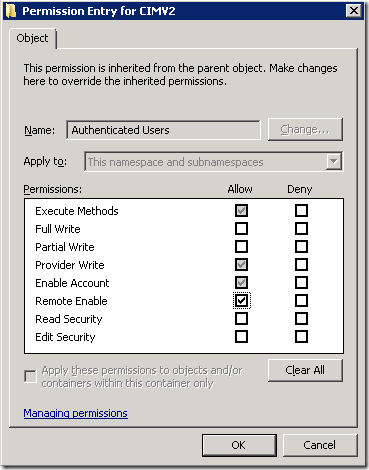
Step 4: Grant Remote WMI permissions. Here I deviated slightly from John’s instructions: I only needed remote access to CIMV2, and Authenticated Users was already there so I was just adding a permission. Computer Management > Services and Applications > WMI Control > Properties > Security tab > expand Root and select CIMV2 > Security button > Advanced > highlight Authenticated Users (already there on my server) > Edit > check Remote Enable > OK. Restart the Windows Management Instrumentation service to make sure the changes take effect.
Update November 5, 2013 The steps here are a little different in Server 2012 R2. You cannot edit the existing Authenticated Users permission. Instead, once you are viewing Advanced Security Settings for CIMV2, click on the Add button, click Select a principal, type Authenticated Users and click OK, then check Remote Enable and click OK.
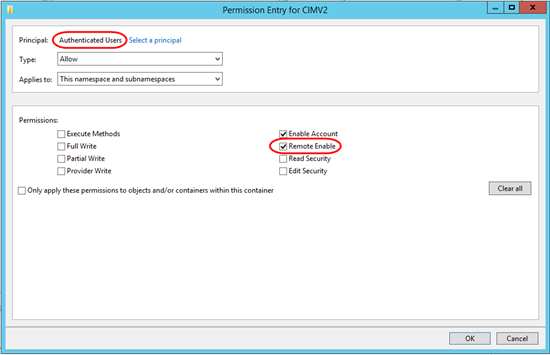
After this, in the Advanced Security Settings dialog, you’ll see one entry for Authenticated Users inherited from the Parent Object, and a second entry that you just created that is not inherited.
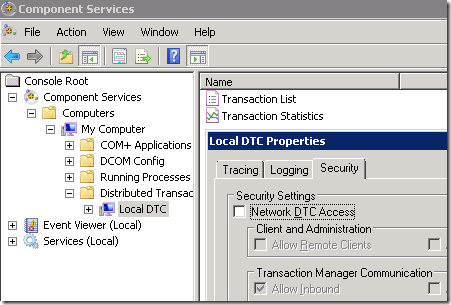
Note: I expected that I would need to enable Network DTC access (described on Technet). However WMI seems work with that turned off:
So Why Does This Work on Domain-Joined Computers without All the Fuss?
As best I can tell, this is because Local Administrators already have these remote DTC and WMI privileges. If you use domain admin credentials, the domain admin is member of the Local Administrators group on the target computer, so the domain admin “inherits” those permissions.
Thank you for this post! It is the source of most of my woes setting up a Win2k8R2 server in my local workgroup and then tearing my hear out when MMC would not connect.
A good clear explanation, even if the context of your error was different.
Great post! This solved my problem with remote WMI on a “Windows Server 8 Beta Datacenter”.
I can not keep from getting “The RPC server is unavailable error”…
I tried every example on the web, used C++, C# and PowerShell…
How does that relate to this post?
In my case I’m trying to remote from one workgroup machine to another using wmi. None of them are in domain. I followed above steps to no avail. Still getting access denied error
Munawar, trying turning off Windows firewall on both machines. If it works then, you’ll know you need to check firewall rules on both sides. Also make sure there are no physical firewalls blocking traffic.
In a “pure workgroup” scenario, there may be other considerations–like are they both in the _same_ workgroup, can they at least browse each other’s files, etc.
Thanks Mark for the quick reply I have the wmi-In inbound rule enabled in both machines. In the machine which I’m trying to connect from, I enabled wmi-Out outbound rule additionally. Still not working. The machine I’m connecting to has Win firewall turned on, whereas the source machine has firewall turned off. These workgroup machines can ping, remote into and access files through win explorer between each other.
This is the error I’m getting. I ran with firewall turned off in both machines. I’m not seeing access denied anymore, which is interesting.
Get-WmiObject : The object exporter specified was not found. (Exception from HRESULT: 0x80070776)
At line:1 char:14
+ Get-WmiObject <<<< -ComputerName "xxxxxx" -namespace "rootCIMV2" -Class win32_OperatingSystem -Property "Ver
sion"
+ CategoryInfo : InvalidOperation: (:) [Get-WmiObject], COMException
+ FullyQualifiedErrorId : GetWMICOMException,Microsoft.PowerShell.Commands.GetWmiObjectCommand
Sorry, not familiar with that one, but I see there are several Google results for that message (“The object exporter specified was not found”), some mentioning NAT in firewalls/routers… Post back if you get an answer!