
One of my misconceptions about the Microsoft virtualization options was that if I wanted to have access to server management tools, I would need to run “regular” (paid) Window Server 2008 so I could install those tools, then enable the Hyper-V role for the virtual clients. It turns out that that is not the case.
My test machine is a Dell PowerEdge 2900. I was able to install and access OpenManage on Hyper-V Server 2008 R2 as follows:
1. Download the latest Dell Systems Management Tools and Documentation DVD. I found version 6.1.0 A00 here. Note that this is actually two downloads that must be concatenated before burning the DVD–see the Installation Instructions on the download page.
2. Follow Dell’s article, “Installing Dell OpenManage Software On Microsoft Windows Server 2008 Core and Microsoft Hyper-V Server.” Only install the Managed System Software, not the Management Station Software.
First run the prerequisite checker by running these commands at the command prompt (assuming the DVD is in drive E):
E:
cd \SYSMGMT\srvadmin\windows\prereqchecker
runprereqchecks.exe /s
Update 10/12/2010: Path corrected–thanks to comment from Ian N.
The instructions for the prerequisite checker tell you to take certain actions depending on the return code. Use this command to view the return code:
echo Return Code = %ERRORLEVEL%
My Return Code was -2, which, according to this article, means “The operating system is not supported. The Prerequisite Checker will not run.” My hunch is that this is because the software has not been updated to recognize the R2 version of Server 2008. I went ahead and ran the installer anyway:
cd \SYSMGMT\srvadmin\windows\SystemsManagement
msiexec /i SysMgmt.msi
After agreeing to continue without having run the prerequisite checker, the installation completed successfully.
3. Open the firewall for the OpenManage web interface default port 1311:
netsh advfirewall firewall add rule name="Dell OpenManage Server Administrator Web GUI" dir=in action=allow protocol=TCP localport=1311
Note Knowledgebase article 947709 is helpful on the netsh commands. However, do not just cut and paste its examples: as of this writing, the quotation marks are all formatted as closing quotation marks (”), so the commands will fail. Replace those quotation marks with standard “vertical” quotation marks (“).
4. From another computer, open a browser and type in the following URL (be sure to get the “s” on the https):
https://[computer name or IP address]:1311
After adding the required security exception in your browser (due to the self-signed web server certificate), you should now see the familiar Server Administrator web interface:
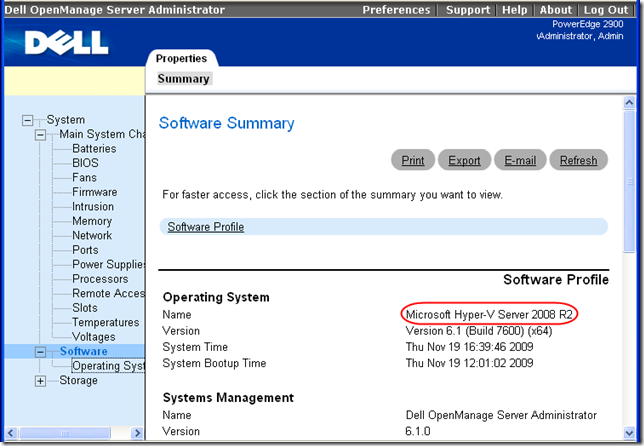
There are other advantages to using the full version of Windows Server 2008 R2 as the host OS, but Dell OpenManage is available even from the free Hyper-V Server 2008 R2.
How did you run setup without having run the prerequisite checker?
It’s been awhile, but since I wrote “After agreeing to continue without having run the prerequisite checker,” I’m guessing that it must have prompted me about whether to continue without completing the prerequisite checks.
Thx for quick response.
I just couldn’t pass prerequisite checker and couldn’t go beyond that.
Thx for your info.
Sorry I don’t have an environment where I can test that easily. You might call Dell support–I’ve had pretty good success with the server support team–be sure to tell the calling routing person that it’s an OpenManage question.
Thanks for the firewall and web console info
Here is where i got the install and prereq info :
I saw there was a typo on your walk through above on the path of the runprereqchecks.exe
it needs to be : SYSMGMTsrvadminwindowsprereqchecker
not : SYSMGMTManagementStationwindowsprereqchecker
http://support.euro.dell.com/support/edocs/software/smsom/6.2/en/omsa_ig/html/serverco.htm#wp1063545
Thanks Ian. I’ve corrected the path in the article.
Hi Mark, thanks so much for the write up! I was wondering how I was going to be able to login remotely, or even at all without a reboot for some functions. I have a DRAC6 Express, but that does not access the raid controller, status, etc. Installation was a breeze on a Dell T410 with Hyper -V 2008 R2. Cheers!
Rob
1 year passed since you wrote this article but even today it saved me to travel 460km and losing one weekend day with the server. Thank you so much and you can guess how much it is with a free weekend day :)
I’ve just installed OM on my Hyper-V (running a 2008 R2 Core). I installed the 6.4 version from dell published the 27th of December. I too couldn’t run the prereqchecker.exe. I couldn’t run the setup.exe either, but I had success in running MSIEXEC /I SYSMGMT.MSI in the folder
SYSMGMTsrvadminwindowsSystemsManagement
I was prompted (and advised not to continue) because the prereqchecker wasn’t run prior to running the msi file. But choosing to continue made the installation of the OM go smoothly.
AWESOME write-up! Thanks so much :)
I am wondering why you would want to install OMSA on a VM with no Dell-specific monitors? Why not use Microsoft SNMP or IPMI utilities or other means?
Nevermind, I misunderstood. You are installing on the host system not in the Hyper-V VM tehmselves…
thanks a ton! this was very good.
Great tutorial. I was able to get OM installed on HVS 2008 R2, but when I try to log in to the web gui, I get “login failed.” Auth creds are the same over the whole network. What am I missing?
Dave, I no longer have this setup…I’m trying to remember how Dell authenticates OpenMange…I know it was Windows credentials, but maybe it has to be local machine credentials vs. domain credentials? So if your local admin name is “MachineAdmin”, try using that as the username. Also try it with the dotted domain to indicate that it’s for the local machine: “.\MachineAdmin”. You should be able to use remote management from another machine to discover the usernames of local user accounts.
Got it going! It was the ol’ DOMAIN\Administrator thing. Threw our domain name in before the username and got right in. Whew. This is a great utility! We have two R610s running HVS 2008 R2 and getting OM to work on the hosts gives us an enormous sigh of relief in that we can monitor the hardware closely now. :)
Great, thanks for the follow-up. Amazing that 7-year-old article still works!
Thank you Mark. I ignored the error 2. I’m wondering if it ight be the fact that R2 is x64 and not i86 based. But anyway, omsa ver 6.2 works fine on R2 server core.