
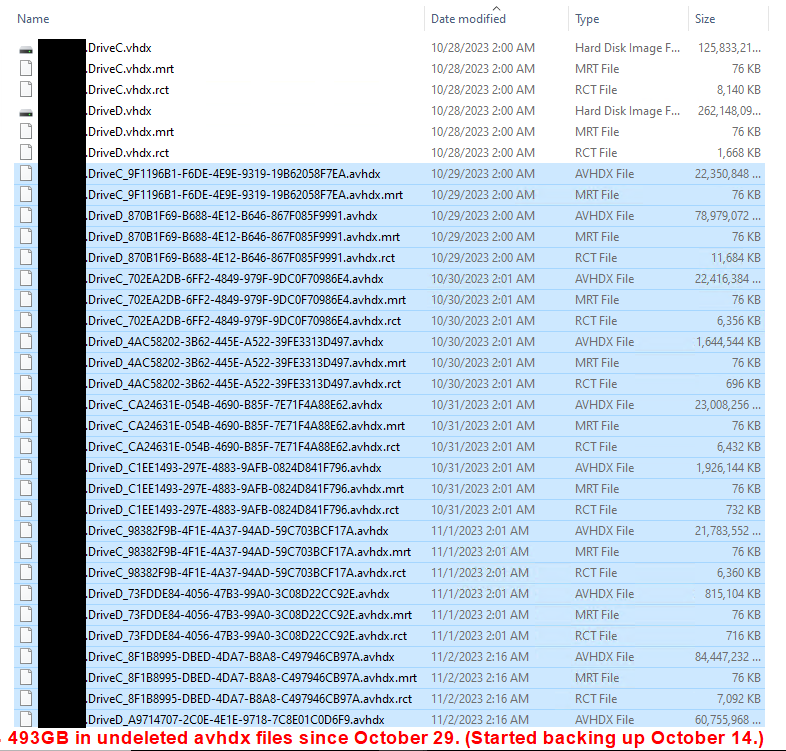
I’m running Hyper-V on a Windows Server 2022 host. I recently discovered that my largest virtual machine was in “differencing” mode, i.e. only writing changes to checkpoint AVHDX files, also known as snapshots. Each day when Synology Active Backup ran, one snapshot stopped and the next began.That left me with 15 snapshots of two VHDX files, for a total of 30 snapshots comprising 493GB:
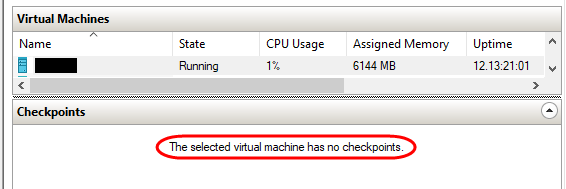
Unfortunately, the Hyper-V Manager did not show any checkpoints, so I was unable to trigger a merge from there:
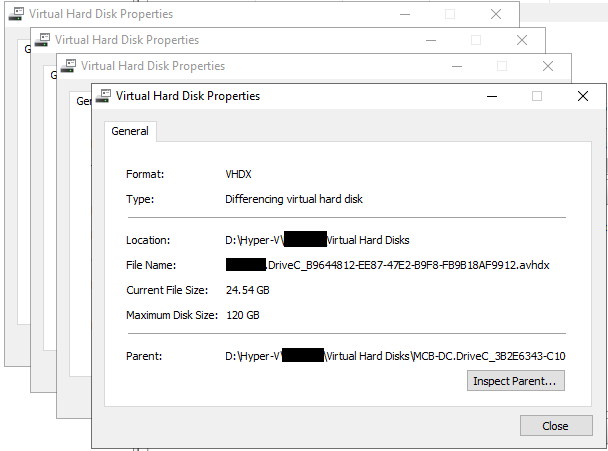
However I was able to confirm using the Inspect Disk function that each file had a parent file. It became clear that I would need to merge each file into its parent up to an including the original VHDX file:
I will spare you the long saga and repeated failures getting these files merged and try to present a summary for “next time.” (hopefully never!).
First, Two Backups
Before you do anything, back up your perfectly running VM using Active Backup and/or another program. Then shut down the VM and copy the entire VM folder (including Virtual Hard Disks and Virtual Machine subfolder) to another location. I copied across the network to another server; it took about 2.5 hours to copy 860GB.
If you have to start over (as I did a couple times), you’ll have to copy the files back, then use icacls to re-add the virtual machine’s ID to the files. I blogged this here and Microsoft has an article here. Note that icacls does allow wildcards, so I was able to use these two commands (substitute your own server path and VM ID):
icacls "D:\Hyper-V\SRV01\Virtual Machines\*.*" /grant "NT VIRTUAL MACHINE\7E77503A-A26B-4BB5-9846-396F49A30141":(F)
icacls "D:\Hyper-V\SRV01\Virtual Hard Disks\*.*" /grant "NT VIRTUAL MACHINE\7E77503A-A26B-4BB5-9846-396F49A30141":(F)
Automatic Merge
Several online articles suggest that snapshots should merge automatically when you shut down the virtual machine. That didn’t happen. In fact, I’m pretty sure I rebooted and it didn’t happen.
What did work in the end was completely shutting down the VM, then starting it from the Hyper-V Manager. When I started the machine, it immediately showed “Merge in progress”:

To my surprise, I didn’t even have to wait until the merge completed before I was able to log in to the machine. Well maybe drive C had to finish, but It kept merging drive D after I logged in.
Manual Merge
If you have to merge manually, you’ll find lots of suggestions out there.
- You can in fact merge one-by-one from the Hyper-V Manager using Edit Disk, but I didn’t trust myself to keep the backup chains straight.
- The Merge-VMDisk command in the AZSBTools package looked promising and I started down that path. Unfortunately, it does not identify the entire chain to be merged; it only merges one snapshot at a time. I ran it repeated until I realized I might do better with the Microsoft option (next). But Merge-VMDisk was somehow updating the main virtual machine with the identifier of the latest disk, so after completing the merge with the the other script, I was left with a running VM that was missing a week’s worth of data—it thought it had been improperly shut down a week earlier.
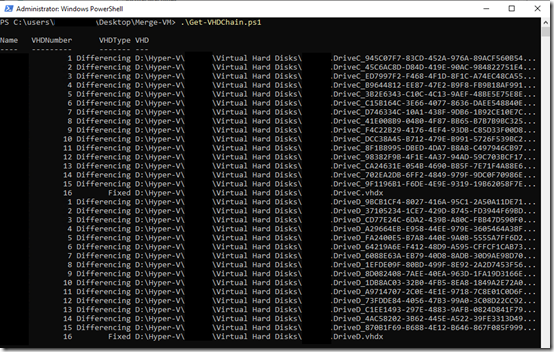
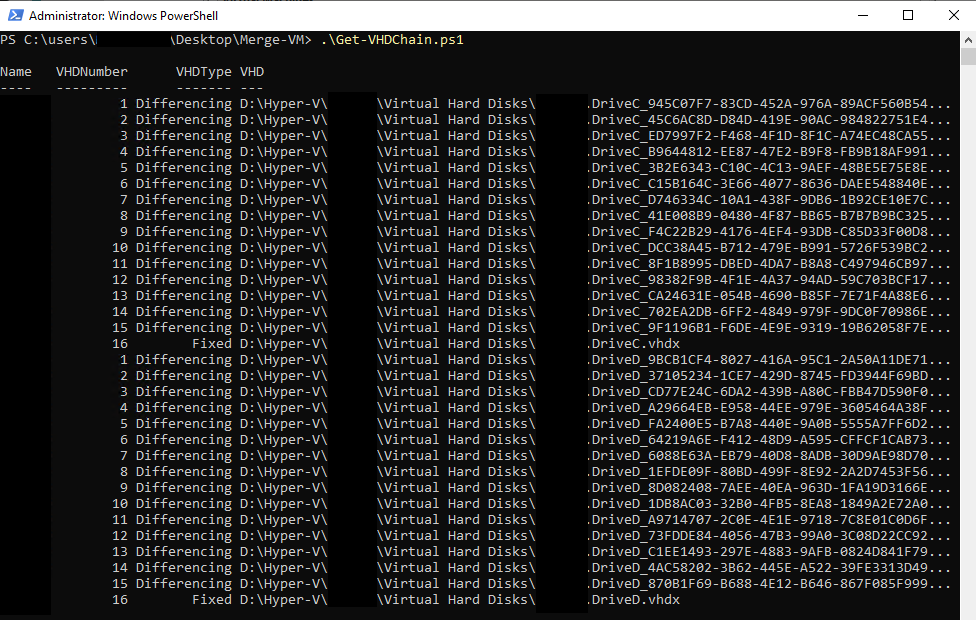
- It turns out that Microsoft has perhaps the most usable instructions on dealing with this situation. See Merging checkpoints when you can’t view them in Hyper-V Manager. I did a little tweaking of their scripts to run them from .ps1 files. The Get-VHDChain function spits out a nice list of files (just make sure the count of AVHDX files matches what you see in Windows Explorer):
After that, the second script can create an ordered list of Merge-VHD commands that you can run to merge the disks.
If I had this to do over and the automatic merge wasn’t working, I’d start with the Microsoft scripts.
Possible Cause
The way this is supposed to work is that the Synology application-aware Active Backup triggers a snapshot, makes its application-consistent backup, then releases the snapshot to be merged back into the main VHDXs. It’s unclear what caused this perpetual snapshot mode in the first place. My hunch is after I first set up this machine and migrated all my data, the delta of the new files was so large that one backup had not completed merging the AVHDXs before the next backup (possibly the Veeam backup inside the VM) began. This thought comes from the Unitrends backup program, which has a setting to guard against this behavior.
If You’re in a Hurry
If this is a production server that people are waiting on and merging isn’t going well, it might be faster to just to a bare metal restore of the Synology Active Backup (the first backup taken above) to a new location. I actually did this while I was trying other merge steps, restoring to a secondary server, and it seems to have worked fine. I kept that restored machine off the network and was ultimately able to complete the merge, but this would have been my fallback if merging didn’t work.
A Final Tip
There are no doubt exceptions, but under normal circumstances, a production Hyper-V server shouldn’t have any AVHDX files except briefly during a backup. If you have a Remote Monitoring and Management (RMM) service, consider adding a daily check to your Hyper-V servers to to let you know if any AVHDX files are still around at, say, 6:00am.
It’s also worth adding an event log monitor that alerts to warnings and errors in the Microsoft-Windows\Hyper-V-VMMS/Admin event log.
Update October 15, 2025
This has happened again, now on Server 2025. Thanks to RMM monitoring, I caught it after only two differencing disks were created. With the VM shut down, I was able to manually merge the newest one with the first one:
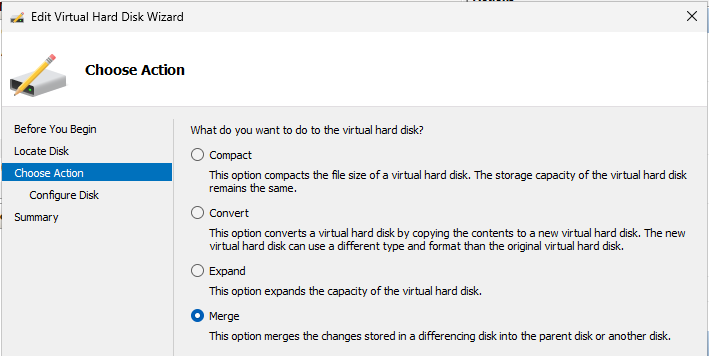
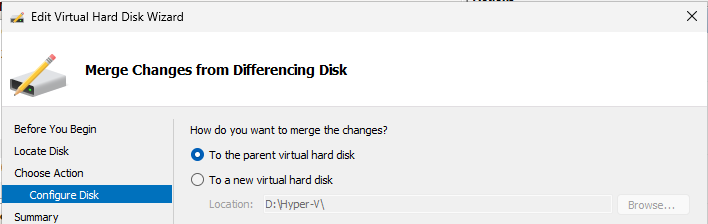
However, when I tried to merge the first differencing disk into the main disk, I got this error (event 19100 in the Microsoft-Windows\Hyper-V-VMMS/Admin event log):
‘MY-VM’ background disk merge failed to complete: The process cannot access the file because it is being used by another process. (0x80070020). (Virtual machine ID xxxxxxxxx-xxxx-xxxx-xxxx-xxxxxxxxxx).
I tried using Sysinternals Process Explorer to check for processes holding a handle to any of the Virtual Hard Disk files, but found nothing. So I don’t know why it thinks it is in use.
Next I rebooted the Hyper-V host and tried the merge again. This time it succeeded. (It occurs to me that I might have been able to just stop the Hyper-V Virtual Machine Management service to see if that would release the process lock.)
Unfortunately, when I tried to edit the disk in the VM’s settings to point to the base .vhdx, it thought that a merge was still in progress:
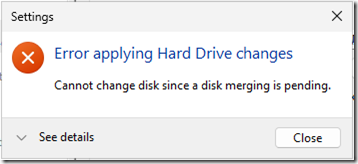
I also noticed that the .avhdx.mrt and .avhdx.rct files from the differencing disks were still present.
ChatGPT took me through a bunch of PowerShell commands trying to resolve this, but in the end I wound up using the Hyper-V UI to remove the .avhdx disk from SCSI location 0, then add the merged .vhdx file to the same location 0. After that, the the VM started fine. I deleted the leftover .avhdx.mrt and .avhdx.rct files.
Update November 4, 2025
I had one VM where Synology Active Backup was leaving behind an .avhdx file every day. After merging the .vhdx file again, I finally deleted the VM and created a new one using the same .vhdx file. But even after removing the virtual machine definition files, the VM was still showing in the UI as “Saved-Critical” and writing lots of errors to the event log about not being able to find its files. One of Gemini’s suggestions pointed me to the Hyper-V cache. News to me. Apparently it’s okay to just delete the whole thing (do this at your own risk):
Stop-Service -Name vmms
Remove-Item -Path "C:\ProgramData\Microsoft\Windows\Hyper-V\Virtual Machines Cache\*" -Recurse -Force
Start-Service -Name vmms
That did in fact remove the old “Saved-Critical” from the Hyper-V UI and stop the complaints in the event log.