
For the last several years, I’ve been running Liberum Help Desk on SQL 2000 under IIS 6. With my recent upgrade to Small Business Server 2008, I needed to move the Help Desk to SQL 2005 Express and IIS 7. Here are my notes on the process.
Update November 26, 2012: today I upgraded from SBS 2008 to Server 2012 Essentials with SQL 2012 Express and IIS 8.0 using mostly the same procedure. See special notes in this color.
Update July 29, 2017: This time, upgrading to IIS 10 under Server 2016.
Update Octobber 25, 2023: This time, upgrading to IIS 10 under Server 2022! Notes in green.
Prepare IIS 7
Liberum Help Desk is a classic ASP application, so to run it under IIS 7 or IIS 8, as explained in this Technet article, you’ll need to enable the following roles under IIS:
- Common HTTP Features > Default Document
- Common HTTP Features > Static Content (required to serve CSS files)
- Health and Diagnostics > HTTP Logging
- Health and Diagnostics > Custom Logging
- Security > Request Filtering
- Security > Basic Authentication
- Application Development > ASP
- Application Development > ISAPI Extensions
It turns out those are already enabled on SBS 2008 and Server 2012 Essentials, so I didn’t have to do anything here. With Server 2022, the Essentials role is no more, and some changes are needed when configuring IIS from scratch.
Set Up an Active Directory User
Add a new user in Active Directory that the web site can use for accessing the database, for example DOMAIN\HelpDeskUser. Create a complex password and set it to Never Expires. I left mine in the default Domain User group.
Create and Configure the Web Site
1. Copy the Help Desk web site files from your old web server to your new server. Give the new Active Directory User at least “Read & execute” privileges in this folder.
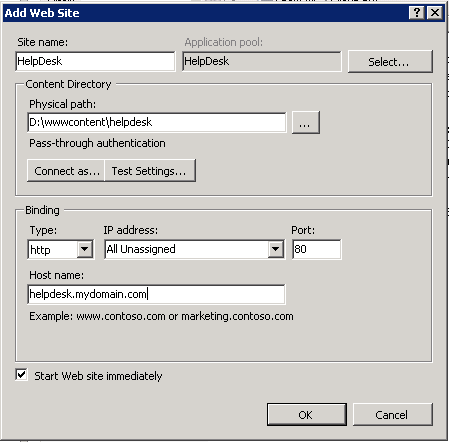
2. Open IIS Manager and create a new web site pointing to the path where you just copied the Help Desk files. The Connect as button here only controls access to the physical path. I was able to leave it as the default (Application user – pass-through authentication). Fill in the binding(s) for accessing the site.
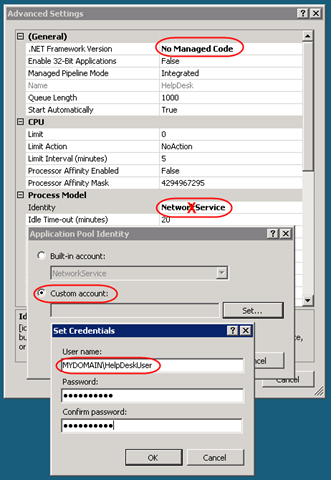
3. Still in IIS Manager, click on Application Pools in the left pane, then right-click on the new application pool created for your web site and choose Advanced Settings.
3.1. Change the .NET Framework Version (now called .NET CLR Version) to No Managed Code.
3.2. Under Process Model > Identity, click on the small button and change the logon from Network Service to the Custom account that you created earlier (DOMAIN\HelpDeskUser).
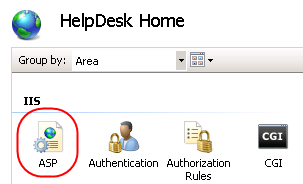
4. Go back to the web site and double-click on ASP to open the ASP properties:
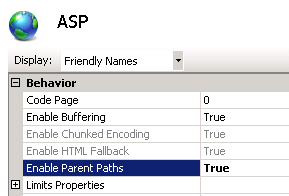
Set Enable Parent Paths to True:
In the right pane, under Actions, click Apply to save the change.
5. Go back to the web site again and double-click on Authentication to open the Authentication properties.
Under IIS 8, I got a strange message at this point:
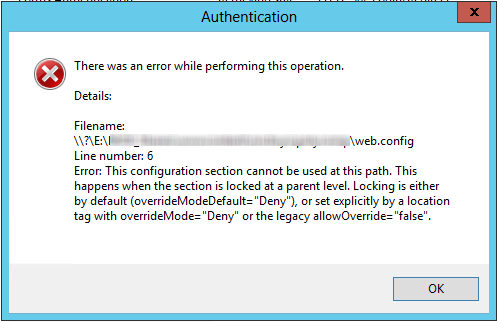
So it doesn’t like the only line in my application’s web.config file:
<?xml version="1.0" encoding="UTF-8"?>
<configuration>
<system.webServer>
<security>
<authentication>
<windowsAuthentication enabled="false" />
</authentication>
</security>
</system.webServer>

</configuration>
After reviewing this StackOverflow answer, my understanding is that I can’t change that setting at the application level because it’s set to overrideModeDefault="Deny" at the applicationHost.config level. But why is the web.config file even there? There is no need to turn off Windows Authentication at the application level; it is already off at the server level. So I simply renamed web.config to web.config.old, restarted the site, and went back in to Authentication. No more error and I was able to proceed as follows.
Right-click on Anonymous Authentication, choose Edit, and change the Anonymous user identity to use the Application pool identity.
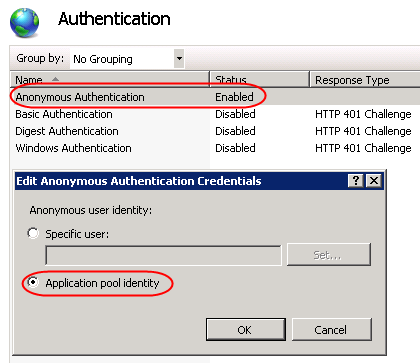
If you leave this set to IUSER, your database logins won’t work!
6. Open the firewall (usually TCP port 80) so your site will be accessible.
Update 7/21/2010: Follow the steps in this post to allow your custom user to update the IIS persistent cache: Template Persistent Cache Error with Classic ASP under IIS 7.
Under Server 2012, when I checked the permissions on C:\Inetpub\inetpub\temp\ASP Compiled Templates, there were no permissions assigned at all:
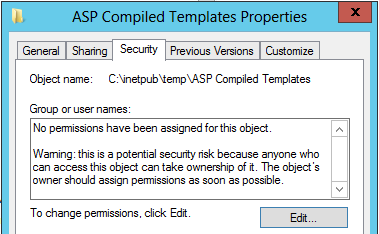
Strange as that seems, since the site is working without them, I did not make any changes there.
Move the Database
I spent a lot of time on with this step because it’s very difficult to move a database containing full-text index configuration if the FTTEXT path has changed.
This is much improved in SQL 2005 and 2012. All I had to do was a backup and restore, and the full-text index came over as well. No need to remove the catalogs, or to re-create the indexes.
My HelpDesk database is relatively small, so the index generates in under 30 seconds. It should be much easier to just drop the full-text index on SQL 2000 before backing up the database for moving to SQL 2005. Although not the route I followed, I’ll document what (I think) is necessary to do that.
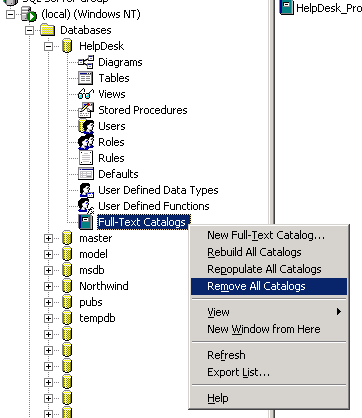
1. In SQL 2000 Enterprise Manager, right-click on the Full-Text Catalogs and Remove All Catalogs. Skip this when migrating from SQL 2005 to 2012.
2. Back up the HelpDesk database to a file. Copy the file to your new server.
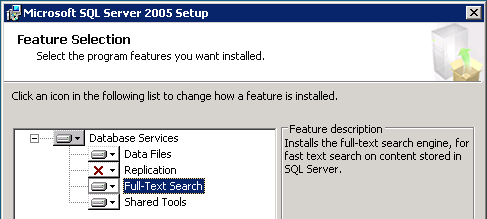
3. On your new server, if you haven’t already, install a new instance of Microsoft SQL Server 2005 Express Edition with Advanced Services Service Pack 2 (download) or SQL Server 2012 Express Edition with Advanced Services with Service Pack 1 (download) or SQL 2022 Express Edition with Advanced Services. The Advanced Services edition is required for full-text search capabilities (which is a pretty awesome feature in a free product!). If, like me, you do not notice the optional Full-Text Search option during the initial installation, you’ll have to go back and do a Change installation to add that feature:
4. You’ll also need Microsoft SQL Server Management Studio Express if that wasn’t included in your install(download).
5. Open SQL Management Studio. Under Security > Logins, create a new login that maps to the Active Directory user you created earlier (DOMAIN\HelpDeskUser).
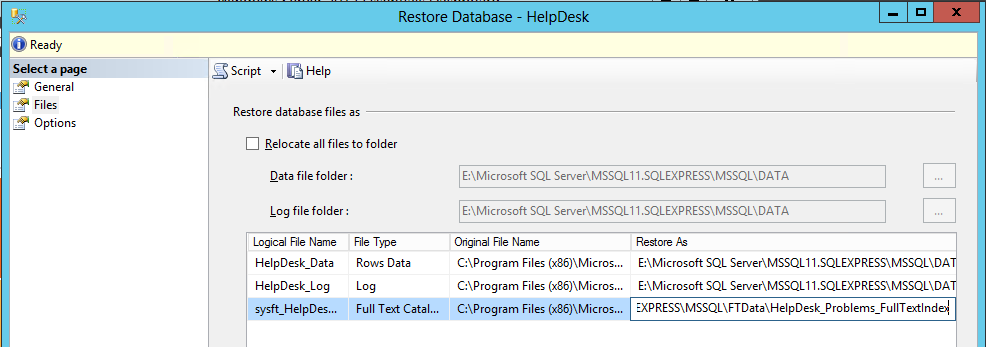
6. Restore the HelpDesk database backup you created just above. On 2012, I chose to rename the files and put the full-text index in the FTData folder:
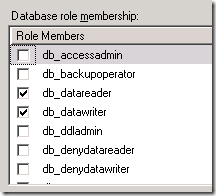
7 Under HelpDesk > Security > Users, create a new Windows user that matches the Active Directory user you created earlier (again DOMAIN\HelpDeskUser). If it already has a user by that name, delete it and re-add it to make sure the user links to the new domain. (I am moving to a new domain with the same name as my previous domain.) Do this even if not moving to a new domain to get it linked properly to the new server. The old user owned the schemas db_datareader and db_datawriter. I had to move ownership on those to the dbo user before I could drop the old Windows user. Assign the db_datareader and db_datawriter roles to the user. Under server Security > Logins, open the user and check User Mapping > HelpDesk. Confirm that the roles show here as well.
8. In your Help Desk web site, edit settings.asp with a text editor. Because I installed a named instance of SQL 2005 Express, I had to change the Application(“SQLServer”) line. If it’s just a local server with the default SQL instance Application(“SQLServer”) = “.\”. I was already using SQL Server with integrated security, so the Application(“DBType”) did not change.
9. At this point you should be able to log in to the Help Desk.
- If the site should only be accessible in the LAN and does not have a public DNS record, add the site to C:\Windows\System32\drivers\etc\hosts on each machine from which it is accessible, including the server.
- If you configured a custom port, you’ll need to bind to and access the site again on the same port, or in SQL Management Studio, open the tblConfig table and edit the BaseURL field to update (or remove) the custom port.
Go to Administration > Configure Site and check/change your SMTP Server.
Note JMail 4.5 installed fine but I get an object error when trying to send a test mail from the Help Desk. I I enabled 32-bit applications as suggested in this thread, but that kills the site (Service Unavailable) and the OWA component of Exchange 2007 Service Pack 3 raises errors in the event log. I’m still working on this issue.
Update 7/23/2010: Since 32-bit JMail is giving IIS with Exchange 2007 SP3 fits, I thought I’d check whether one of the other mail components supported by Liberum Help Desk is available in a 64-bit version. Success: I installed the 64-bit version of ASPEmail from Persits Software, changed the Help Desk configuration to use ASPEmail, and voila!, I’m sending email.
Update 7/26/2010: An extra setting is required in Exchange 2007 to allow ASPEmail to anonymously send mail outside the network. See the bottom of this article.
With 2012, I installed the latest 64-bit free version of Persits’ ASPEmail. Then, because I am no longer running Exchange, and because my mail server requires authentication (which the free version of ASPEmail does not support), I had to set up the server’s native SMTP service, then configure it as a smarthost to Office 365.
Note You can set up SMTP as a Windows 2012 “Feature.” For more information, Search Server Manager help for “SMTP”. Start the Internet Information Services (IIS) 6.0 Manager application to access SMTP configuration options.
Update 7/29/2017: The Liberum Administration page has a place to test the configuration, including sending a test email. If that gives you a “Connection refused” message, make sure that the SMTP service is listening on port 25 (how to check listening ports). I found that SMTP had stopped unexpectedly (it wasn’t set to auto-start on reboot).
For Server 2022, I’ve switched from IIS 6 to MailEnable Standard as my SMTP smart host (download). For the Help Desk, I installed the “evaluation”/free 64-bit version of ASPEmail version 5.6.0.3 (download). Once that is installed, the Help Desk was immediately able to send mail through the smart host.
Set Up Full-Text Indexing
Skip this section if you’re upgrading from 2005 to 2012!
If you plan to use full-text indexing, you’ll need to create the index. Some UI elements are missing from the Express edition, so it’s not quite as easy as it is under SQL 2000. Here are the basics.
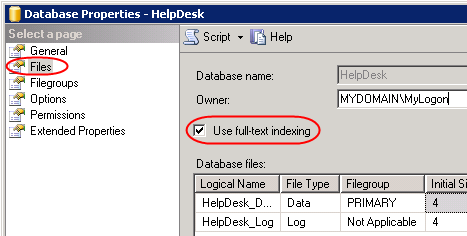
1. Open SQL Management Studio. Right-click on the HelpDesk database and choose Properties, then Files. Check the Use full-text indexing box. If the box is grayed out, you may need to install the optional Full-Text Search feature—see above.
2. Open a new query and use a T-SQL command to create a full-text catalog. For example:
USE HelpDesk
CREATE FULLTEXT CATALOG HelpDesk_Problems_FullTextIndex
AS DEFAULT
You can check for catalogs with this command:
SELECT * FROM sysfulltextcatalogs
3. Back in the main SQL Management Studio window, expand the HelpDesk database and the list of Tables. Right-click and choose Refresh (so the Management Studio will see the catalog you just created). Then right-click on the problems table and choose Design. Right-click in the design window and choose Fulltext Index. In the Full-text Index dialog, click on the Add button. Click the little button next to Columns and choose the title, description, and solution columns. Leave the other fields with their default values.
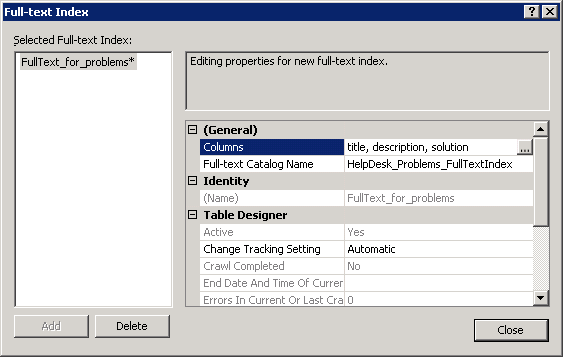
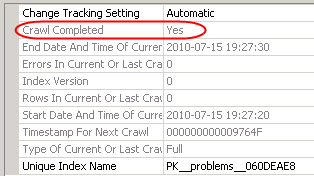
Click on Close, then exit the Design view, confirming that you do want to save changes to the problems table. At this point, you can go back into Design view, open the Full-text index dialog, and check whether population (crawl) is complete—mine took 10 seconds:
Back Up without the Full-Text Index
SQL 2005 Express is VSS-aware, so I’m counting on my daily server backups to include the HelpDesk database for disaster recovery. However I also want to be able to create a backup manually that does not include the full-text index, in case the backup needs to be restored elsewhere. To that end, I created the Back Up HelpDesk script which you are free to try and modify at your own risk. Note that this approach assumes the database uses the Simple recovery model. It seems that otherwise, log backups are required to fully remove the full-text catalog.
Update November 12, 2013 I decided to create daily backups as well using a scheduled task and the sp_BackupDatabases stored procedure provided in MSKB 2019698. Note that in order for the task to run, the Windows user under which you run the scheduled task must be defined as a SQL Login with appropriate permissions on the server or database. I created a special user for these kinds of system tasks and assigned it the sysadmin role on the SQL server.
Update July 16, 2021 If you upgrade your server to stop accepting TLS 1.0 connections, e.g. using Nartec IIS Crypto, Liberum Help Desk will stop working. You’ll need to install a new SQL driver and update the hard-coded connection string:
- Download the Microsoft OLE DB Driver for SQL Server here. Install it. A reboot should not be necessary.
- In the Liberum Help Desk root folder, in the public.asp file, in the CreateCon function, replace SQLOLEDB.1 with MSOLEDBSQL.1.
Credits
I found two posts by Ian Porter to be very helpful as I got started on full-text indexing under SQL 2005 Express: re-installation and setup.
For details, many thanks to Marcin Policht for an amazing series of articles on full-text indexing in SQL 2005 Express. The series starts here.
hi there,thinking of using this as my support logging call centre.Is there an easy way to install this directly into express. ie do you have a blank copy of the sql express database that you are using ….sorry but my skills of converting are rusty to sat the least . so yes i am looking for the lazy mans way of setting up the helpdesk software.have you any tips for a helpdesk newbe best way to install new set in sql 2005 express. anyway hope you are well and find this mail in good spirits cheers
Willie, I wouldn’t recommend Liberum unless you are comfortable with SQL, IIS, and probably ASP programming. I’ve done a fair amount of customization (ASP modifications) to get it to work the way I want it. It’s adequate for my needs but still lacks some basic functionality like file attachments. Maybe http://www.ZenDesk.com or the help desk in Spiceworks would be options for you.
I followed your instructions but the HelpDesk won’t display login. It gives message: Unable to obtain username with NT authentication.
Were you using NT Auth?
No I’m not using NT auth.
Sounds like IIS is not passing the user name to the help desk. Open the site in IIS manager and click on Authentication. Enable “Windows Authentication”. Does that help? See also the Liberum readme.txt, section VII. AUTHENTICATION.
Have you got an updated guide with iis7 and windows authentication?
Sorry Troy, I don’t.
For the server side, I assume you saw my general remarks in the August 17 comment above.
Here’s a brief article on getting the client-side Windows authentication to work automatically in IE8 (which I’m using for another application, not Liberum Help Desk):
https://www.mcbsys.com/blog/2010/12/set-up-windows-authentication-in-ie8/
In step 2 above, you create a new website using port 80, but in SBS 2008, port 80 is already in use and it gives an error saying that if you proceed, only one of the websites can be started. Should the helpdesk actually be added as a new virtual directory and if so under which website (Default or SBS), or am I missing something?
Thanks
Alan Mason
IIS allows you to share port 80 among several sites if you specify a different Host Name for each. It uses the HTTP headers to direct requests to the corresponding site. So “mydomain.com” might go to the SBS default site, but “helpdesk.mydomain.com” goes to a the site defined above. You can add other sites too: “webapp.mydomain.com” could go to some web application hosted on your server. (You’ll need to add corresponding CNAME records to your public DNS.)
Note: this only works with non-SSL sites: port 443 always goes to one site, and on default SBS 2008, port 443 is already taken.