
I’m running NOD32 Antivirus Business Edition version 3.0.684.0.
Zenith Infotech monitoring sometimes downloads files that trip NOD32’s HTTP filter (e.g. SpyBot and BitDefender executables). Zenith recommends excluding “update.itsupport247.net” from antivirus scanning. It’s not hard to do in NOD32, but it is hard to find someone who knows how to do it!
Here’s the basic procedure:
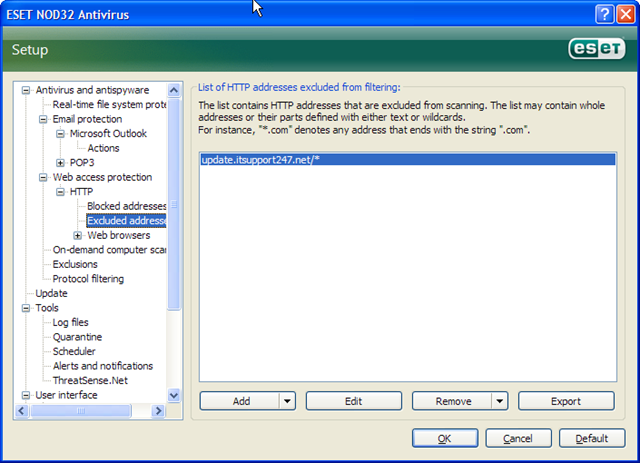
- Open the NOD32 client interface and press F5 to load the Advanced dialog. Navigate to Antivirus and antispyware > Web access protection > HTTP > Excluded addresses.
- Add “update.itsupport247.net/*” to the list.
Note: do not put “http://” in front of the address, but do put “/* ” after it! If you forget the “/*”, the exclusion won’t work: NOD32 will block Zenith from downloading files.
Deploy Using ESET Remote Administrator Console
Want to deploy that from a configuration file? Here is where things really get strange.
First, even though you don’t own the firewall product, to set up an HTTP exclusion, open the ESET Configuration Editor and navigate to ESET Smart Security, ESET NOD32 Antivirus > Personal firewall > Setup > List of URL addresses excluded from filtering. Click on Edit to add “update.itsupport247.net/*”.
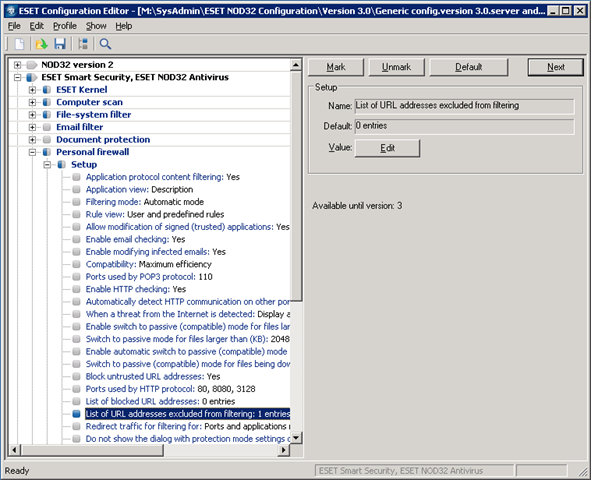
The problem is, when you deploy that, the exclusion will not show up in the client’s user interface if that client has never had an HTTP exclusion. However, if you first set up any HTTP exclusion on the client, then deploy the correct exclusion from the ESET Remote Administrator Console, the correct exclusion will appear on the client.
I have not been able to figure out why the exclusions don’t appear until one is first added to the client. But hopefully, with that annoying manual effort, the exclusion will at least work and allow the clients to download the Zenith updates as necessary.
hi Mark,
Thanks for the tips. I would love to know if the same applies to v4 of Nod32? I am having a real problem trying to install S&CC module and ZCC on nod32 sites. Seems that once the nod client has caught the file and quarantined it once, no matter what exclusions are setup later – it will not even notify that anything is being filtered, it just wont let it through… Do you have a comprehensive list of the required exclusions in Nod32, for SAAZ?
Thanks for sharing,
Ryan
Sorry Ryan, I switched to Sunbelt VIPRE some time ago so I don’t have any further info on NOD32. Also I’m not using Zenith’s S&CC and ZCC. One thing I remember for NOD32 (may also apply to VIPRE) is that for Zenith, you have to exclude the long AND short folder names, for example:
C:Program FilesSAAZOD
C:PROGRA~1SAAZOD
I also exclude the temp files used by SAAZ:
C:WINDOWSTEMP_ir_sf7_temp_0
C:WINDOWSTEMP_ir_sf7_temp_1
C:WINDOWSTEMP_ir_sf7_temp_2
C:WINDOWSTEMP_ir_sf7_temp_3
C:WINDOWSTEMP_ir_sf7_temp_4
I savor, cause I found exactly what I was looking for.
You have ende my 4 day lengthy hunt! God Bless
yoou man. Have a ice day. Bye